
Introduction
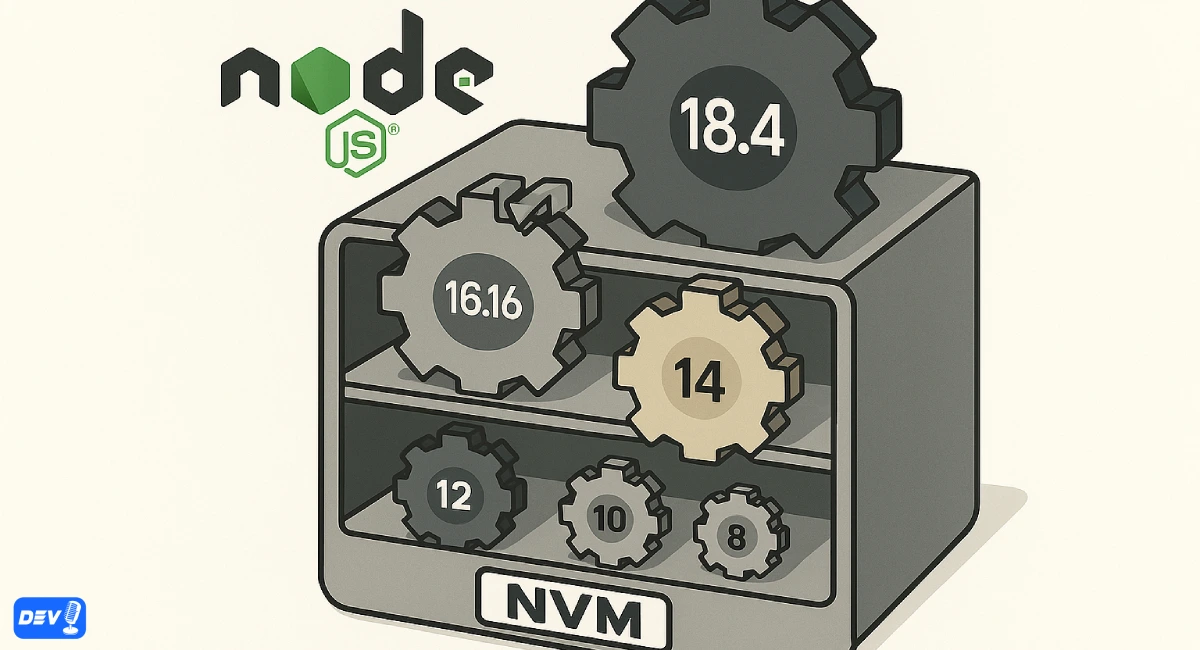
Node Version Manager (NVM) is a powerful tool for managing multiple Node.js versions on your machine. However, NVM works differently on Windows (using nvm-windows) compared to macOS/Linux (using nvm-sh). This guide separates the setup, usage, and troubleshooting for each platform, with examples to help you get started. Whether you’re on Windows or a Unix-based system, you’ll learn how to install NVM and manage Node.js versions.
NVM on Windows (nvm-windows)
nvm-windows is a separate project designed for Windows, as the original NVM is POSIX-compliant and not supported on Windows. It provides similar functionality but uses different commands and installation steps.
Installation
1. Download nvm-windows:
- Visit the nvm-windows GitHub releases page.
- Download the latest nvm-setup.exe (e.g., version 1.1.12 as of July 2025).
- Run the installer as an administrator (right-click → “Run as administrator”).
2. Verify Installation: Open Command Prompt or PowerShell (preferably as administrator) and run:
nvm --version
Expected Output: 1.1.12 (or the installed version).
3. Enable nvm-windows (if needed): Ensure nvm is enabled:
nvm on
Key Commands
1. List Available Versions: Use nvm list available
nvm list available
Expected Output:

2. Install a Node.js Version: To install Node.js 18.20.4:
nvm install 18.20.4
3. Switch Versions: To use Node.js 18.20.4:
nvm use 18.20.4
Verify:
node --version
Output: v18.20.4
4. List Installed Versions:
nvm list
Output:

5. Uninstall a Version:
nvm uninstall 16.20.2
NVM on macOS/Linux (nvm-sh)
nvm-sh is the original NVM, designed for POSIX-compliant systems like macOS and Linux.
Installation
1. Install NVM: Run in your terminal:
curl -o- https://raw.githubusercontent.com/nvm-sh/nvm/v0.40.1/install.sh | bash
This installs NVM version 0.40.1 (latest as of July 2025). Check the nvm-sh GitHub page for updates.
2. Update Shell: Add NVM to your shell profile (e.g., ~/.bashrc, ~/.zshrc):
source ~/.bashrc
Or for Zsh:
source ~/.zshrc
3. Verify Installation:
nvm --version
Output: 0.40.1
Key Commands
1. List Available Versions:
nvm ls-remote
Output:

2. Filter specific versions:
nvm ls-remote | grep v18
3. Install a Node.js Version:
nvm install 18.20.4
3. Switch Versions:
nvm use 18.20.4
Verify:
node --version
Output: v18.20.4
4. Set Default Version:
nvm alias default 18.20.4
5. List Installed Versions:
nvm ls
Output:

6. Uninstall a Version:
nvm uninstall 16.20.2
Conclusion
Node Version Manager (NVM) is an essential tool for developers juggling multiple Node.js versions, whether on Windows (using nvm-windows) or macOS/Linux (using nvm-sh). By allowing seamless installation, switching, and management of Node.js versions, NVM eliminates version conflicts and simplifies project setup. On Windows, nvm list available helps you explore versions, while nvm ls-remote does the same on macOS/Linux.
If you found this helpful, feel free to share or drop a comment. Happy coding with Laravel! 🧱✨
Get one practical tip every week
New tutorials, fixes and free cheat sheets from DEV Talk, straight to your inbox. No spam, unsubscribe in one click.
Have a question about this post?
Ask the community: other developers and the author can answer.
Get notified about new articles
One click, no email needed. Turn it off anytime with the bell at the top.
Get new articles on your iPhone
Add DEV Talk to your Home Screen, open it, then tap the bell.
Enjoying the content?
If this article helped you, you can support the author with a coffee. It keeps new posts coming.


Comments 0
No comments yet
Be the first to share your thoughts.