

On this page
- Which command do I need?
- git reset: three modes, three different outcomes
- Recover a commit after reset --hard
- git revert: undo a commit by adding a new one
- Recover a deleted branch
- Get one file back from an older commit
- Last resort: work that was staged but never committed
- Be careful with git clean
- If you already pushed the commit
- Common problems
- Before you move on
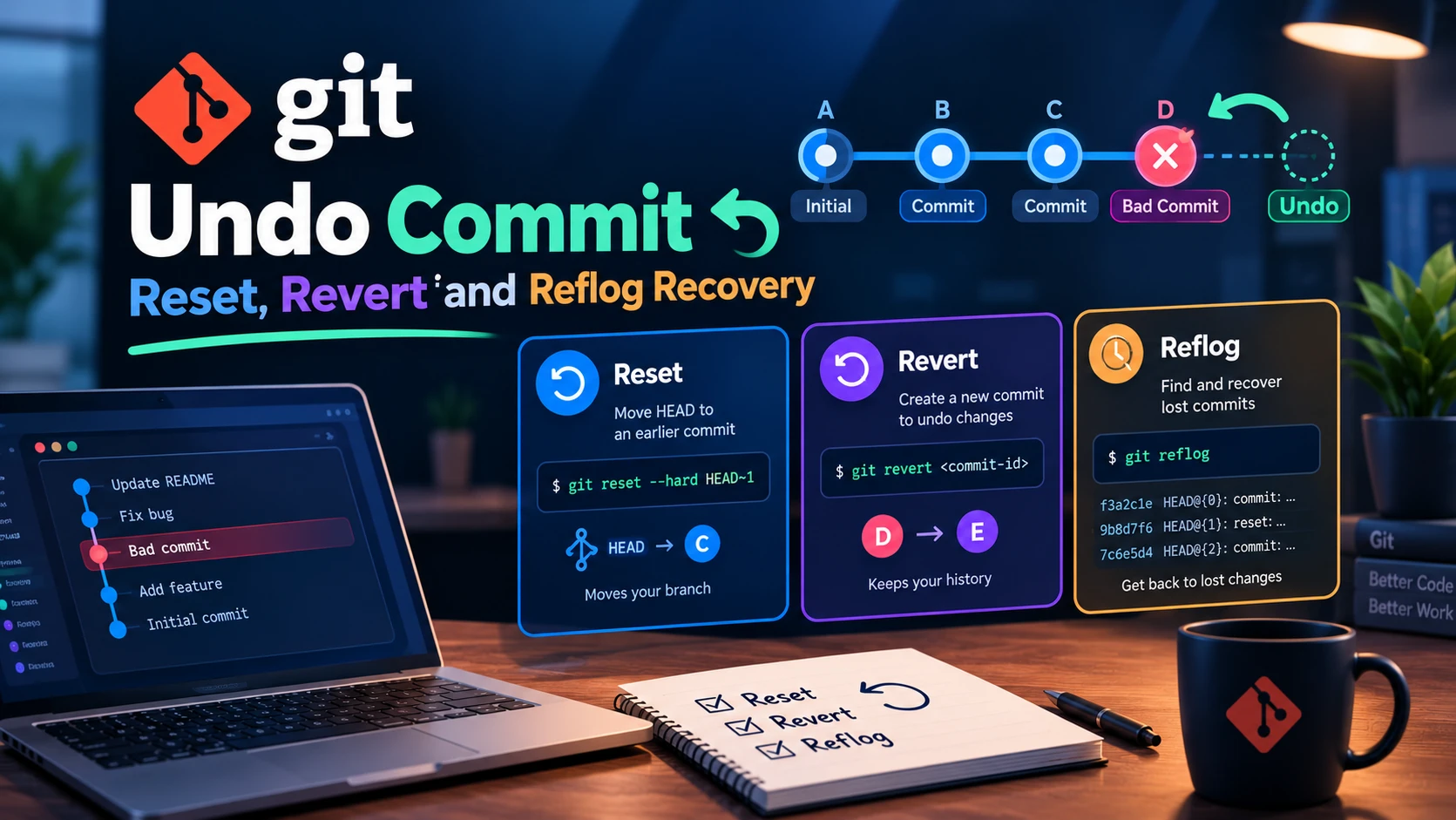
Knowing how to git undo a commit is mostly knowing which of three different commands matches your situation: git reset moves your branch back, git revert adds a new commit that cancels an old one, and the reflog is how you get a commit back after you moved too far. Pick the wrong one and you either lose work or rewrite history other people depend on. This part gives you a decision rule, shows exactly what each command does to the three areas from Part 1, and covers recovery, including the cases where nothing can bring your work back.
All commands were run on Git 2.43.0 in a scratch repository. The examples use a small Order.php file with three commits: Add Order v1, Order v2 and Order v3.
Which command do I need?
| Situation | Use |
|---|---|
| Wrong commit message or forgotten file, not pushed | git commit --amend (Part 2) |
| Last commit(s) were a mistake, not pushed yet | git reset |
| Bad commit is already pushed or shared | git revert |
| Need one file as it was in an older commit | git restore --source=<commit> <file> |
| Moved a branch too far, or deleted one | git reflog |
The dividing line is whether anyone else has the commit. reset rewrites history, which is fine locally and a problem once shared (Part 4's rule). revert only adds history, so it is always safe on shared branches.
git reset: three modes, three different outcomes
git reset <commit> moves the current branch to that commit. What happens to the index and your files depends on the mode:
| Mode | Branch moves | Index (staging) | Working tree |
|---|---|---|---|
--soft | Yes | Left as is | Left as is |
--mixed (default) | Yes | Reset to the target commit | Left as is |
--hard | Yes | Reset to the target commit | Overwritten |
--soft: undo the commit, keep everything staged
git reset --soft HEAD~1
git status -s
M Order.phpThe commit is gone, but the change from Order v3 is still staged, ready to commit again. Use this to redo a commit message, or to combine the last few commits into one: git reset --soft HEAD~3 then a single git commit.
--mixed: undo the commit, keep the changes unstaged
git reset HEAD~1
git status -s
Unstaged changes after reset:
M Order.php
M Order.phpThis is the default and the usual choice. The file still contains the v3 content, but it is no longer staged, so you can re-stage it in pieces with git add -p (Part 2) and commit it as several clean commits.
--hard: undo the commit and throw away the changes
echo "<?php // uncommitted" > Order.php
git reset --hard HEAD~1
HEAD is now at 96e396d Order v2Afterwards Order.php contained the v2 content, and my uncommitted edit was gone. That edit was never committed or staged, so no recovery method exists for it. The commit that --hard moved past is a different story.
Recover a commit after reset --hard
The commit still exists; only the branch pointer moved. The reflog records where HEAD has been:
git reflog -396e396d HEAD@{0}: reset: moving to HEAD~1
51307dc HEAD@{1}: commit: Order v3
96e396d HEAD@{2}: reset: moving to HEAD~1The commit before the reset is HEAD@{1}. Move back to it:
git reset --hard HEAD@{1}HEAD is now at 51307dc Order v3Right after a reset, Git also stores the previous tip in ORIG_HEAD, so git reset --hard ORIG_HEAD is a shortcut. It gets overwritten by later operations, so the reflog is the more reliable route. In zsh, quote the reference: 'HEAD@{1}'.
How long the reflog remembers
Reflog entries are not permanent. By default, reachable entries expire after 90 days and unreachable ones after 30 (the gc.reflogExpire and gc.reflogExpireUnreachable settings; neither was set in my test repository, so those are the defaults). The reflog is also local: it records what happened in your clone only, and a fresh clone has none of it.
git revert: undo a commit by adding a new one
git revert --no-edit HEAD[main cc625e6] Revert "Order v3"cc625e6 Revert "Order v3"
51307dc Order v3
96e396d Order v2
59794aa Add Order v1Order.php is back to v2, but the original commit stays in the history and a new commit records that you undid it. Nothing is rewritten, so you can push it normally and nobody's clone breaks. Without --no-edit, Git opens your editor for the message; the default Revert "..." subject is usually fine, and a body explaining why is better.
To revert several commits and combine them into one, add -n (--no-commit). Git applies the reverse changes and leaves them staged for you to commit yourself:
git revert -n HEAD~1..HEAD
git status -s     # M  Order.php
Reverting a merge commit
A merge has two parents, so Git can't know which side you want to keep. It stops:
error: commit 287414b... is a merge but no -m option was given.
fatal: revert failed
Tell it which parent is the mainline. For a merge made on main, parent 1 is main's side:
git revert -m 1 <merge-commit>In my test this removed the merged branch's file and kept the file that had been committed on main. There is one trap. Git now considers the branch's commits "undone", so merging that branch again does nothing:
$ git merge feat
Already up to date.
If you revert a merge and later want the branch back, you first have to revert the revert, or rebase the branch onto new commits so it has fresh hashes. Many people hit this a week after the fact.
Recover a deleted branch
Deleting a branch removes only its pointer. After git branch -D scratch (Part 3), the reflog still had the entry for the last commit made on it:
git reflog03f6da6 HEAD@{0}: checkout: moving from scratch to main
68e2fba HEAD@{1}: commit: Scratch work
03f6da6 HEAD@{2}: checkout: moving from main to scratchgit switch -c scratch-restored 68e2fbaThe branch is back with its files. This only works for commits that were made in this clone and are not yet expired from the reflog.
Get one file back from an older commit
You don't have to move the whole branch to recover one file. git restore --source writes the old version into your working tree and leaves the rest alone:
git restore --source=HEAD~3 Order.php
git diff
Review it with git diff, then stage and commit it like any other change.
Last resort: work that was staged but never committed
Part 1 explained that unstaged edits can't be recovered once discarded. Staged content is different. When you run git add, Git writes the file's contents into its object store immediately, so even after git reset --hard wipes the file from disk, the data may still be there as an unreferenced object:
echo "<?php // precious staged" > Precious.php
git add Precious.php
git reset --hard
git fsck --lost-found
dangling blob ca178f253fa992bcf58c4b40a7073e4690b032c4git cat-file -p ca178f2<?php // precious stagedYou get the contents back, but not the filename; a blob has no name, so you will have to match them by reading. Garbage collection eventually removes dangling objects, so do this soon, and treat it as a rescue rather than a plan. If you have many dangling blobs, git fsck --lost-found also writes them to .git/lost-found/.
Be careful with git clean
Related and just as permanent: git clean deletes untracked files, which Git has no copy of at all. Always preview first:
git clean -n      # dry run: lists what would be removed
git clean -nd     # include untracked directories
Would remove junk.txtOnly when that list is what you expect should you run it for real (git clean -f, with -d for directories). Ignored files, such as vendor/ or .env from Part 2, are not touched unless you add -x.
If you already pushed the commit
If the bad commit is on a shared branch, use revert. If you do reset a pushed branch that only you use, the push will be rejected as non-fast-forward and you need git push --force-with-lease (Part 4). On main or any branch others pull, don't force-push; revert instead and tell the team. If the commit contained a secret, none of this removes it from history; see Part 10.
Common problems
| Symptom | Cause and fix |
|---|---|
Commits vanished after reset --hard | They're unreferenced, not deleted. git reflog, then git reset --hard <hash>. |
Uncommitted edits lost after reset --hard or restore | Never staged, so not recoverable. Only editor history or backups help. |
git revert says commit is a merge | Add -m 1 (or -m 2) to choose the mainline parent. |
| Merging a branch again does nothing after reverting its merge | Git thinks it's already merged. Revert the revert, then merge. |
HEAD@{1} fails in zsh | Quote it: 'HEAD@{1}'. |
| Reflog doesn't show a commit from last month | It may have expired, or it was made in a different clone. Reflogs are local. |
Before you move on
Run git status and git log --oneline before any reset --hard, so you know what it will discard. Prefer --mixed or --soft when you only want to redo commits. Use revert on anything pushed. Check git clean -n before deleting. And when something goes wrong, stop and read git reflog first; most "lost" commits are still in it.
References: git-reset, git-revert, git-reflog, git-fsck and git-clean in the official Git documentation.
Related reading: Part 1: Git Staging Area Explained, Part 3: Git Merge Conflicts and Part 4: Git Rebase Explained.
Free resources for this topic
Get one practical tip every week
New tutorials, fixes and free cheat sheets from DEV Talk, straight to your inbox. No spam, unsubscribe in one click.
Free download: Git cheat sheet (PDF)
Have a question about this post?
Ask the community: other developers and the author can answer.
Get notified about new articles
One click, no email needed. Turn it off anytime with the bell at the top.
Get new articles on your iPhone
Add DEV Talk to your Home Screen, open it, then tap the bell.
Enjoying the content?
If this article helped you, you can support the author with a coffee. It keeps new posts coming.


Comments 0
No comments yet
Be the first to share your thoughts.