

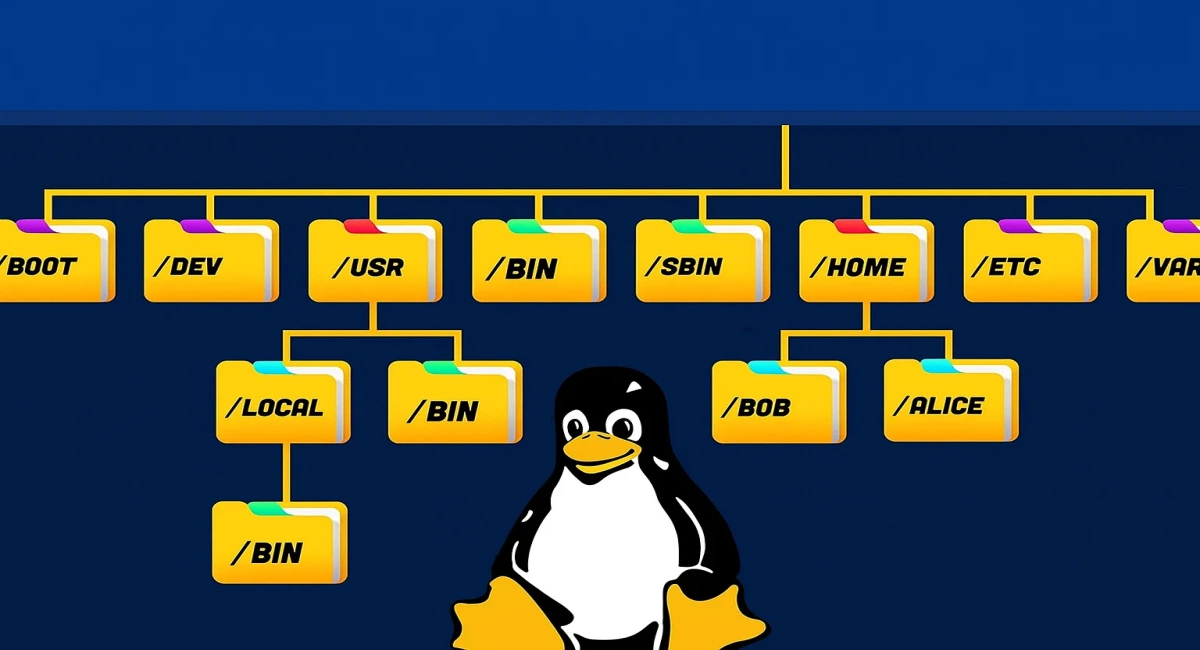
If you want to become an expert in Linux or work confidently in the IT industry, one of the first things you must understand is the Linux Filesystem Hierarchy.
Every single file, folder, configuration, log, or application in a Linux system is organized under a well-defined directory structure. Without knowing what each directory represents, working on Linux is like walking blindfolded.
In this article, we’ll explain the Linux Filesystem Hierarchy, what each folder means, and how to navigate it effectively.
📂 Linux Filesystem Hierarchy Explained
Here’s a breakdown of the most important Linux directories:
1./ (Root Directory)
The top-level directory of the entire Linux filesystem. Every other folder and file is stored inside this.
Examples: /home, /etc
2. /bin (Binary)
Contains essential user commands (executables) required for basic system operations.
Examples: cat, ls, cp, mv
3. /sbin (System Binary)
Holds system administration commands used by the root or sudo users.
Examples: fdisk, reboot
4. /etc (Configuration Files)
Stores system-wide configuration files for the OS and installed services.
/etc/passwd→ User accounts/etc/apt/sources.list→ Ubuntu repositories
5. /dev (Devices)
Represents hardware devices as files.
/dev/sda→ Storage device/dev/tty→ Terminal
6. /proc (Process Information)
A virtual filesystem with information about running processes and kernel parameters.
/proc/meminfo→ Memory usage/proc/cpuinfo→ CPU details
7. /var (Variable Files)
Contains frequently changing data like logs, caches, and databases.
/var/log→ System logs/var/www/html→ Web server files
8. /usr (User Programs)
Contains user-installed applications and utilities.
/usr/bin→ User binaries/usr/lib→ Libraries
9. /tmp (Temporary Files)
Stores temporary files that are usually deleted after a reboot.
10. /home (User Directories)
Personal directories for each user in the system.
Example: /home/username
11. /boot (Boot Files)
Contains boot loader files needed to start the OS.
Examples: grub/
12. /lib (Libraries)
Holds essential shared libraries for /bin and /sbin.
13. /opt (Optional Software)
Used for third-party or optional software installations.
14. /mnt (Mount Point)
Temporary mount point for external or network file systems.
Examples: /mnt/usb, NFS mounts
15. /media (Removable Media)
Auto-mounts removable devices such as USBs and CDs.
16. /srv (Service Data)
Stores server-related data for services like FTP or websites.
17. /run (Runtime Data)
Holds runtime process data for the current session.
🖥️ Essential Linux Commands for Navigating the Filesystem
Now that you understand the structure, let’s look at some basic Linux commands to work with the filesystem.
pwd→ Print current working directorycd→ Change directoryls→ List files/foldersmkdir→ Create a new directorytouch→ Create an empty filecp→ Copy files/foldersmv→ Move or rename files/foldersrm→ Remove files/foldersrmdir→ Remove an empty directorycat→ Display file contentless/more→ View file content page-by-pagevi/vim→ Edit files in a text editordf→ Show disk space usagedu→ Check directory size
Conclusion
The Linux Filesystem Hierarchy is the foundation of every Linux-based operating system. By understanding what each directory does, you’ll be able to navigate Linux with confidence, manage servers, troubleshoot issues, and work like a true IT professional.
👉 Start practicing these commands today and explore the filesystem to become more comfortable with Linux.
If you found this helpful, feel free to share or drop a comment. Happy coding with Laravel! 🧱✨
Free resources for this topic
Code snippets and fixes for this topic
Get one practical tip every week
New tutorials, fixes and free cheat sheets from DEV Talk, straight to your inbox. No spam, unsubscribe in one click.
Free download: Docker cheat sheet (PDF)
Have a question about this post?
Ask the community: other developers and the author can answer.
Get notified about new articles
One click, no email needed. Turn it off anytime with the bell at the top.
Get new articles on your iPhone
Add DEV Talk to your Home Screen, open it, then tap the bell.
Enjoying the content?
If this article helped you, you can support the author with a coffee. It keeps new posts coming.


Comments 0
No comments yet
Be the first to share your thoughts.